October 1, 2026
Build a Website With AI (for Free)
From Your Brand Files to a Live Site
I’m a software engineer, and I’ve been building websites and apps for more than 20 years. Until recently, I was skeptical that AI could really do what I do. It could write a bit of code, sure, but design and build a whole website, the way I would? I didn’t think so.
When it came time to rebuild this website, the one you’re reading now, I decided to put that to the test and build it with AI. In less than half an hour, I had a site that was better than my last one. It:
- Matches my brand and style: clean, readable and a bit techy and quirky, with light and dark modes.
- Has a blog that’s easy to update.
- Has a contact form that works, sending messages straight to my inbox, with spam protection built in.
- Loads almost instantly, anywhere in the world.
- Works everywhere: on every phone, tablet and computer, and for people using screen readers, keyboards or zoom.
- Costs nothing to host. No monthly bill, no plan to upgrade. I pay for my domain name and nothing else.
For technical readers: how this site is built
The stack
- Claude: designed, built and maintains the site from plain-language requests.
- Astro: a fully static site, so pages are plain HTML that loads instantly.
- Sätteri: Astro’s Markdown processor, so blog posts stay plain Markdown.
- CSS, with custom properties and cascade layers: no framework or preprocessor, so there’s nothing to keep updated.
- Inter and IBM Plex Mono, self-hosted: no third-party font requests.
- TypeScript: type-checked contact form and server code.
- Cloudflare Workers static assets: free, unlimited hosting on a global network.
- Cloudflare Workers Builds: every push to GitHub deploys automatically.
- Cloudflare Turnstile: spam protection without puzzles.
- Fastmail’s JMAP API: sends contact messages from my own domain with a single API token. (With Gmail or Google Workspace, the options are more complex: the Gmail API with OAuth, SMTP with an app password, a transactional email service, or Cloudflare Email Routing.)
- Vitest, Playwright, axe and html-validate: every change is tested for bugs, accessibility and valid HTML.
The results
- WCAG 2.2 level AA accessibility.
- At or near 100 in all four Lighthouse categories (performance, accessibility, best practices and SEO), on mobile and desktop.
- Valid HTML on every page.
- $0 a month in hosting, on Cloudflare Workers’ free plan.
I spent the rest of the day refining it with AI, and by the end of that day I’d changed my mind. AI is really good at this now.
I’ll admit I had an advantage. After 20 years of building websites, I know which decisions matter, which ones don’t, and what to ask for at each step, so I knew how to tell the AI exactly what to do. And that’s really what this post is about: showing you what to say to AI to build a real, great website for your business.
A playful example
To show you exactly what this process looks like, I built a second site from scratch, for an imaginary stand-up paddleboard tour business called SUP with Jo, and recorded the process so I can show you how it works.
What you’ll need
If you want to follow along, here’s what you’ll need:
- Claude. You’ll need the desktop app and a Claude Pro plan (~€20/mo).
- A Cloudflare account, from dash.cloudflare.com. A free account is fine.
- A domain name. It’s simplest to buy it through Cloudflare, so it’s in the right place from the start. If you already own one somewhere else, you can transfer it to Cloudflare. A domain that stays with another company can still work, but it needs some manual technical steps to connect. You can start designing before you’ve sorted this out.
- All of the information and files you can find about your business.
01 Prepare
Making a project folder
The first thing I did was make a folder for this project, named Paddleboard Website. Inside it, I made three more folders: Context, Design and Website.
Adding context
Next, I took every file I had about my business and dragged it into the Context folder.
A key idea when building things with AI: the more context you give, and the better quality that context is, the better your results will be.
Here’s what I recommend putting in the Context folder:
- A logo, in the best quality you have (make one with AI first if you don’t have one)
- Photos of the work, the place, the team and customers (with their permission). Phone photos are fine.
- Text from an old website, brochures, flyers or menus
- Services and prices, opening hours, location and contact details
- Reviews and testimonials you’re happy to show
- A description of the business in your own words: who it serves, what makes it different, how you want people to feel
- Links to websites you like the look of
Anything you put into this folder might become public, so make sure to leave out private things like passwords, bank details, customer records and internal documents, and only add photos that you have consent to use.
02 Setup
My 20 years of software engineering experience made it easy for me to guide Claude through the process of making all the right technical decisions for my website. In the process, I taught Claude my way of doing it. If you don’t have technical experience building websites, you can use my skill, which will help Claude guide you through the process and get similar results. Setting it up takes two simple steps:
Turn on Claude’s file creation abilities
First, open the Claude menu at the top of your screen and choose Settings…. Choose Capabilities from the list on the left, and turn on Cloud code execution and file creation. This will let Claude use the skill to create the files it needs for your website.
Install the skill
Then, download Jo’s Website Skill. In Settings, choose Skills from the list on the left. Click + Add, then Upload skill. Drag the file you downloaded onto the box, or click browse to find it, then click Upload.
That’s all. Now any time you ask Claude to make a website, it will use my skill.
03 Design
Giving Claude the project folder and asking it to design the site
Before asking Claude to build a website for me, I asked it to make a design. I started a new conversation in Claude, clicked the + beside the message box, chose Add folder, selected the project folder, and clicked Open.
Then I checked the model selected at the bottom right of the message box. At the time of writing, Opus 5.5 was a good choice for long, multi-step jobs like this. Less powerful models like Sonnet are faster, but quality suffers. More powerful models like Fable are unnecessary, and take more time and use up your plan’s limits before you finish.
Then I told Claude what I wanted. Since I’d already given Claude all the context about my business, I didn’t need to say much more than that I wanted it to design a website. But this is a place where the more you tell Claude about what you want, the better your results will be. If you don’t know what to say, you can use this prompt:
But if you have more of an idea of what you want your site to look like, or what features you want to design, add that information to the prompt before you send it. Here’s a more descriptive example:
When you send the prompt, Claude will ask for permission to change files in the folder. Then Claude will take a look at everything in your folder, and ask some questions to clarify what you want.
Answering a few questions
Claude already knew a lot from the folder I gave it, so its questions were about filling in the gaps and getting my direction before it designed anything: what visitors should do, how the site should feel, and which pages and features I wanted. I picked the answers that fit, and typed my own where none did. The questions depend on the business, so yours will be different from mine.
Reviewing the homepage
Once I’d answered, I watched as Claude opened a design canvas to the side of the chat and started designing the homepage. This can take anywhere from roughly 5 to 30 minutes, so it’s a good moment for a coffee. When it was ready, Claude asked me to check a few details it wasn’t sure about. I expanded the design canvas to full screen, zoomed in, moved around and checked the result.
There were a few things that I wanted to change. I changed a few directly on the canvas myself, then asked Claude to make some other changes. This is a good time to check the overall look and feel, and whether the design has all of the sections you want and shows all the features you need. It won’t be a functioning website yet, but this is the easiest moment to change your mind about the look and feel, so keep chatting with Claude until everything looks good. You get as many revisions as you want here, but be aware that each revision will use more of your usage limits, so keep an eye on the usage meter in the bottom right corner of the chat:
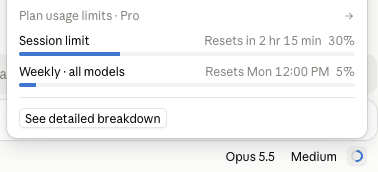
When I was happy with the design, I told Claude and asked it to build the site. Claude saved everything in the Design folder on my computer, and moved on to the next step.
04 Build
Before building anything, I had to connect Cloudflare. This is the company that hosts the website for free. Claude can do almost everything on Cloudflare for you, including setting up preview sites, but you have to connect it first, and give it permission. This step can be a bit intimidating. If you’d rather not do it yourself, I offer setup as a service. Tell me what you need and I’ll send you a quote. But I’ll show you here what I did, and Claude can also walk you through it one click at a time.
Adding the Cloudflare connector
In Claude, I opened the Claude menu and chose Settings…, then chose Connectors from the list on the left. I clicked + Add, then Add custom connector, named it Cloudflare MCP, pasted in this address, and clicked Continue:
https://mcp.cloudflare.com/mcpClaude checked the address and picked the right sign-in settings itself, so I left them as they were and clicked Add.
Connecting to Cloudflare
After adding the connector, the next step is to sign in. I clicked Connect, then Continue connecting when my browser opened, and signed in to Cloudflare. On the Authorize application page, I chose Full access and clicked Continue. That sounds like a lot, but the next screen is where you narrow it down.
Giving Claude only the permissions it needs
The next screen offers 384 permissions, which is everything Cloudflare can do. I clicked Edit Permissions, then switched off every category using the toggle beside each one, until it said 2 total permissions. Those two, Background Access and User Read, are required and can’t be switched off.
Then I used Search scopes to find each of these 18 permissions, which are what Claude needs to build and publish your website, and set up contact forms. I switched them on one at a time:
- Account & Billing: Account Read
- App Security: Turnstile Sites Read, Turnstile Sites Write
- DNS & Zones: DNS Read, DNS Write, Zone Read
- Email & Messaging: Email Routing Addresses Read, Email Routing Addresses Write, Email Routing Rules Read, Email Routing Rules Write, Email Sending Read, Email Sending Write
- Developer Platform: Workers Routes Read, Workers Routes Write, Workers Scripts Bind, Workers Scripts Read, Workers Scripts Write, Workers Tail Read
When it said 20 total permissions, I clicked Authorize. If the count is anything else, something is missing or left over from a category that didn’t fully switch off. When it was done, my browser said I was connected, and I clicked Allow when it asked to open Claude.
Those 20 permissions let Claude put up preview pages, publish the site, connect the domain, send contact form messages and set up spam protection. Once your site is set up, and you aren’t using Claude anymore for updates, you can remove the connection at any time from your Cloudflare profile.
Building the preview site
With Cloudflare connected, I told Claude to build the site. Claude built every page, tested them, and put the site up on a private preview link. This is the longest step: the demo site took about half an hour, and the progress panel on the right shows how far along it is.
Once it was done, I opened the preview link and checked everything on the site. I checked it on my computer and my phone, checked all the pages, in both languages, and asked Claude to make changes until I was happy.
Setting up the contact form
I tried sending a message with the contact form, and it didn’t work yet. So I asked Claude to help me set it up. Claude asked me some questions about my existing email setup, and which addresses I wanted to use. Then it asked Cloudflare to send a link to my email address to confirm the email was mine. I clicked Verify email address. Then Claude walked me through switching on Email Routing in my Cloudflare dashboard, which took a few clicks: choose the domain, click Continue, then Activate.
After setting up Email Routing, I filled in the form on the preview site and sent it. A few moments later, the message arrived in my inbox. Replying to it goes straight to the person who sent it.
If your business already has email on its domain, a free contact form is usually a little bit harder for Claude to set up, so it might leave the form out and put the email address and phone number on the contact page instead, so that it doesn’t break your existing email setup.
Adding a contact form alongside existing email is possible, but it needs some technical setup, and possibly paid services. If Claude can’t set this up for you, contact me, and I can help.
05 Publish
Launching the site
When everything looked right, I told Claude to launch. A few minutes later, my finished site was live at supwithjo.com! The total process from my brand files to a live site took less than an hour! Easy!
Since the domain name was already in my Cloudflare account, and I’d already told Claude which domain to use, Claude did all of the domain setup itself. If your domain isn’t in your Cloudflare account yet, Claude can help guide you on the simplest way to get it there, or how to point your domain to the new site manually.
Making changes
Any time I want to update the site, I can just tell Claude what I want to change, we walk through the process together, and Claude can update the site automatically for me.
What’s free, and what costs money
For both my portfolio site and my imaginary paddleboarding business, hosting the websites and their working contact forms is completely free. I only pay for the domain names, and a Claude Pro plan.
It’s possible to build more advanced features for these websites like online shops, customer logins, booking systems, newsletters and video hosting, using Claude and Cloudflare. Some of them may cost money or require technical setup. If there’s a specific feature you want to build, ask Claude and see what it can do for you, or contact me and I can give you a quote for more advanced projects.
Should I build my own site this way?
This approach to building websites works perfectly for me, since I’m already a Claude and Cloudflare user, and it costs me nothing to build and run my websites this way. I recommend it for anyone who needs a simple website that they fully own and control.
But some may prefer to pay for a website that’s managed for them, where they don’t have to take responsibility for things like backups, security, or fixing things when they break. If that’s you, there are several options, and the landscape of AI tools is changing rapidly, with new tools and approaches appearing every day.
If you want to build a website with AI but prefer to have someone manage it for you, there are several platforms available for this:
- Lovable builds websites and web apps from a chat, and hosts them for you, with custom domains, user logins and more. You can also connect it directly with Claude. You can try it out for free, and basic plans have a reasonable monthly fee.
- Bolt.new also builds sites and apps from a chat, with hosting and databases included. It offers free plans with Bolt.new branding on your site, and plans without branding are also reasonably priced.
- v0, from Vercel, builds sites and apps from a chat and publishes them on Vercel’s hosting. Its free plan has a limit on messages each day. Paid plans are a bit more expensive and give access to all of its AI models.
A few thoughts to finish
It still surprises me. A few years ago, a site like this took a team, a budget and weeks of back-and-forth. Now a business owner can describe what they want in their own words and have it live on their own domain by the evening, for the price of a domain name. There are real limits to what AI can do, and it still takes judgment to know what to ask for. That judgment is what I’ve tried to share in this post, and to put into my skill.
If this was useful, please share it with someone who’s been meaning to get a website for years: a friend’s café, a local nonprofit, the yoga teacher down the road.
And I’d love to see what you build. Send me a link. If you get stuck along the way, or you want something more than these tools can do, my services are available. Let me know what you need and I’ll send you a quote. I also take on larger web and software projects if you have something bigger in mind.